Blog

Make Your Own Interlinear with Jev

Try the interactive interlinear aligner.

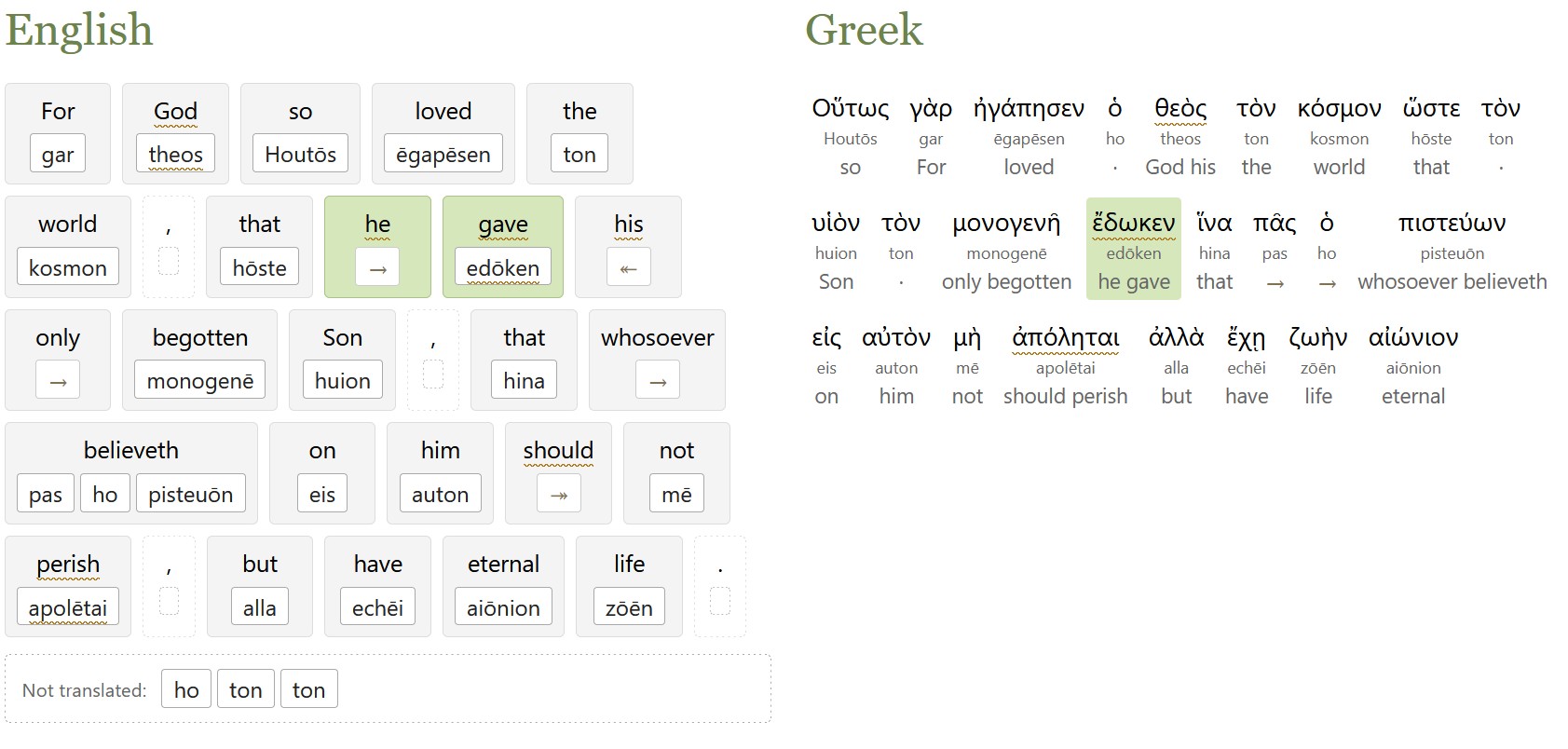
This tool lets you hand Jev (a new AI model) a translation of a Bible verse. It aligns the translation with the original Greek or Hebrew in seconds, about 30x faster than using a frontier model for the alignment. The interface also lets you correct any errors in the alignment by hand and export the alignment as JSON for your own purposes.

A screenshot of John 3:16 in the interlinear interface shows how you can align its text with the Greek.

When building an interlinear for the ASV Bible, I mentioned how each chapter took 30+ minutes to align using a frontier model (or about two minutes per verse). In my testing, Jev creates a verse-level alignment that agrees with the final ASV interlinear on 80% of tokens, in seconds, for just under 1 U.S. cent per verse (on average).

It works for any English translation of a verse; for example, you could create your own translation and ask for an interlinear alignment. It also appears to work decently on non-English languages, though I only tested Spanish on a single verse.

The code reformulates the ASV interlinear alignment rules into 179 focused policies that Jev can apply to any verse. The ASV rules (Hebrew and Greek) are widely reusable for other projects; if you’re thinking of doing an interlinear alignment, I’d encourage you to consider them as a starting point.

This aligner is good enough to use as a first-pass interlinear for Greek or Hebrew, or if you need something quick, but I wouldn’t rely on it without further review. You could take its output and send it to a stronger, slower LLM for final polishing, for example.

It works better on word-for-word translations than on thought-for-thought, though it does what it can.

If you want to use Jev for this purpose at scale rather than interactively, I also published the code that does this alignment.

Posted in AI, Code, Interlinear

Using Jev to Identify Ambiguous Bible Passage References in Text

Try a live demo of this fuzzy reference parser or download the code to run it yourself.

About Jev

Jev, released last month, represents a new kind of AI that’s fast, cheap, and smart enough to integrate into interactive workflows. Unlike frontier LLMs that can take multiple seconds to respond to a request, Jev responds in milliseconds and costs fractions of a penny. That speed comes with tradeoffs: rather than generate text, it’s designed to answer specific questions. It’s useful when you want to assess data at scale with specific questions that need basic intelligence—for example, extracting Bible references from text when those references don’t follow predefined patterns.

How Jev parses references smartly

Consider the text “John 3:16. Read verse 17.” You and I know that “verse 17” here means John 3:17. But it’s somewhat harder for traditional parser code to understand that. In this simple example, you could write a heuristic to decide that “verse 17” here is almost certainly John 3:17.

But imagine a more complex case: “John 3:16 connects to 1:1. But you really need to understand v17 to understand it.” Here you’d need some complex heuristics to figure out whether “v17” refers to 1:17 or 3:17. It’s possible to do—you can imagine creating complex sets of parser rules that make good guesses, using statistical co-occurrence data, or training a machine-learning model to figure it out.

Instead, now Jev can decide (spending 0.1 cents in about a second) that “v17” is 94% likely to refer to 3:17.

Jev considers questions in parallel to speed up computation. The parsing flow for this example needs four sequential round trips:

  1. Identify potential matching text segments (400ms).
  2. Choose books (200ms).
  3. Choose chapters and verses (200ms).
  4. Validate responses (200ms).

There’s a decent amount of complexity (or, as Sol 6.1 calls it, “speculative execution”) under the hood to balance cost and latency, but that’s the basic idea. You might think that steps 2 and 3 could be combined to save some latency. Doing so improves latency by 10% but doubles the dollar cost, which wasn’t a good tradeoff for me.

Jev correctly handles the “she is 2 cool” problem described in the parser’s readme, where “is 2” gets parsed as “Isaiah 2” under the default settings. Jev is smart enough to recognize context and to reject this naively plausible text.

It also handles references in non-English text. I doubt it supports the hundreds of languages that the parser understands, though I only tested a handful of major languages.

Comparing models

With so many model providers jumping on the Jev bandwagon, I benchmarked several different models (Cloudflare’s Clef, OpenAI’s Luna Decisions API, and Microsoft’s Decision-1), and Jev consistently won. All the others took much longer (45%-400% longer) than Jev and/or were much less accurate (about 40% pass rate, compared to Jev’s 92% on about 200 tests). Clef (not Omni) came closest, with a 77% pass rate. OpenAI’s Decisions API flat-out refused to return answers for half the test suite because of technical limitations in their current approach.

How you can use it

I’ve added this logic as an experimental plugin to my Bible Passage Reference Parser on Github. If you have OpenRouter or TypeSafe credits, you can try it out locally.

Alternately, you can try it interactively on a demo page.

The code (written by GPT 6.1 Sol) went through a lot of iterations at my direction to try to find the best balance of speed, cost, and accuracy. I don’t know that this approach actually hits the best balance of the three; conceptually, I’d prefer to do fewer server round trips. Jev-style models are so new that it’s hard to know what the best practices are.

It returns probabilities rather than certainties; the above sentence, for example, returns a 94% probability that “v17” refers to John 3:17. It returns all alternate readings it thinks are possible, along with their probabilities, so that you can decide what to do with them.

It actually returns two separate probabilities: (1) How likely is it that the text is a Bible reference at all? (2) If it is a Bible reference, what does it refer to?

In terms of calibration, which is a bit tricky to measure, Jev’s predicted probability matched its accuracy closely at scores of 0.8 and higher; below that, it vastly overestimated the probability of a citation: between 0.7 and 0.799, its mean predicted probability was 0.75, but the true citation rate was only 0.2. So, in my testing, there’s an abrupt change at 0.8.

It parses around 500 bytes per second, about three orders of magnitude slower than the local-only parser. That latency, plus the small-but-real financial cost, means that you should consider whether this added intelligence is right for your use case.

Why?

The deterministic parser is designed for interactive Bible applications, to handle text from users and convert it into structured input for a Bible application to do something with. It can work for other applications (such as scanning long content for Bible references), but it isn’t optimized for them (mostly because heuristics are both language-specific and add substantial code complexity).

A sprinkle of Jev extends this base functionality to a much wider array of use cases at a reasonable cost. For example, I estimate that parsing book-length content (80,000 words) for Bible references would cost around $10 if used naively (for example, to manage cost, maybe you could skip paragraphs without numbers in them).

Jev is a new way to think about applying AI to everyday problems. It’s good, fast, and cheap—which means it adds new capabilities to otherwise deterministic logic. TypeSafe’s description of Jev as “smart if-statements” fits well what it’s doing here: replacing hand-tuned heuristics with smatters of intelligence.

Posted in Code

So You Want Small-caps, but Your Font Doesn’t Support Them

Have you wanted to typeset a Bible on screen or in print, but your preferred font doesn’t support small-caps (which is especially important for the Old Testament, where the small-caps Lord appears frequently in many translations)?

Well, if it’s a variable font, you can now try synthesizing small-caps with this quick Small-caps generator for variable fonts.

This tool tries to guess reasonable small-caps metrics for your font: it scales down the characters and increases the weight, width, and tracking to better approximate real small-caps.

Why not just use browser small-caps?

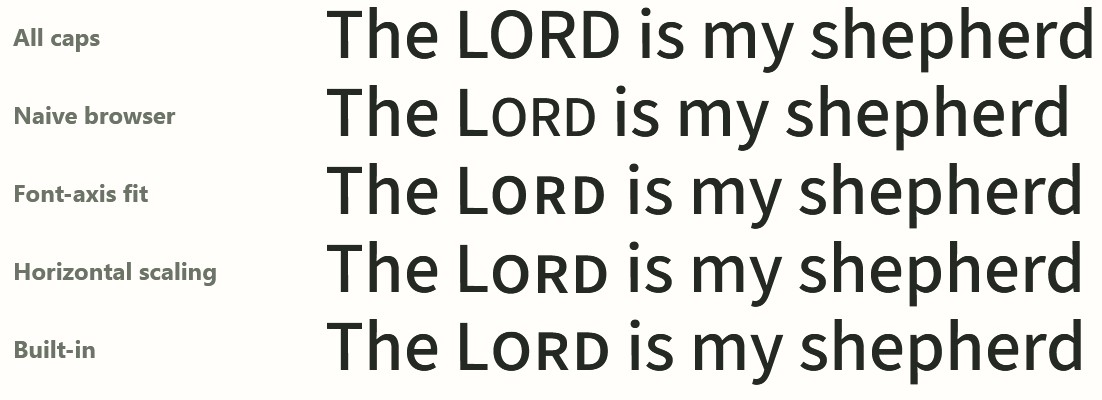
When true small-caps glyphs aren’t available, the regular CSS font-variant: small-caps declaration scales down the full-caps glyphs, leading them to appear lighter than the surrounding text. Take a look at the second line here (“Naive browser”), compared to the bottom line (the font’s built-in small-caps). This weight difference becomes especially annoying at large sizes or in running text. This example uses Source Sans.

Source Sans font shows all-caps, browser small-caps, font-axis fit, horizontal scaling, and built-in. The horizontal scaling closely matches the built-in small-caps.

How does the tool decide what to change?

The weight, width, and tracking it uses are based on an analysis of the top 500 fonts on Google Fonts, 51 of which have small-caps (smcp) support built into the font.

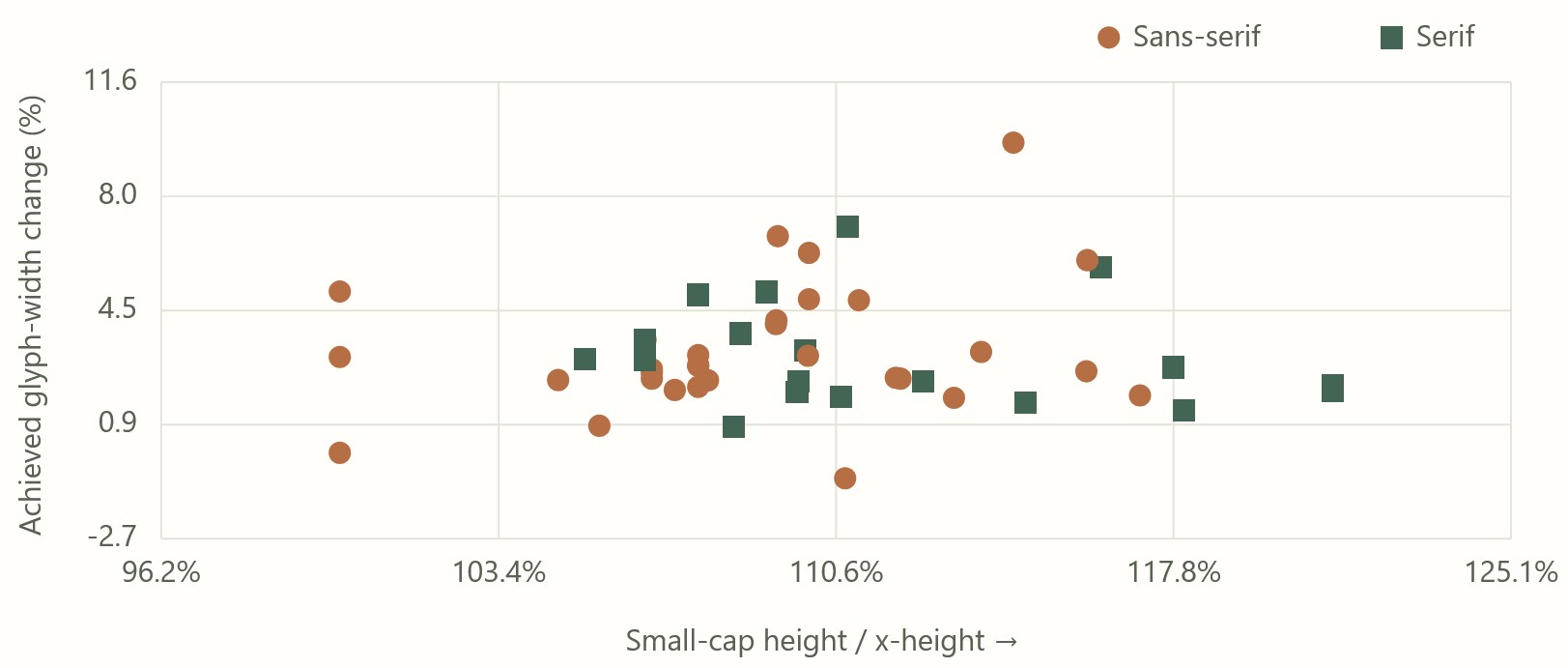
Here’s what that distribution looks like; there’s a decent amount of variability, but it also shows that your font’s small-caps will probably fall within a certain range of possible values.

The x-axis plots the small-caps height divided by x-height; the y-axis plots the glyph width change.
Native small-caps height plotted against native small-caps width, compared to default characters. This chart shows that font designers choose to vary height and width somewhat independently when designing small-caps, but still within a clear range.

For Google Fonts where small-caps are available from the Google Fonts repo, the tool uses precomputed values to match the built-in small-caps. It’s typically within 3% error, as described on the tool’s “Outlines” tab.

Why would you want synthetic small-caps?

In a web context, Google Fonts doesn’t supply the small-caps variants. Even if your font supports them, there’s no way to make them appear. This tool provides you the code you need to make them appear, by linking to the .otf rather than the optimized .woff2 (at the cost of a much larger font file).

To avoid the larger font file, the tool also supplies the CSS needed to synthesize small-caps that look as close as possible to native small-caps. If you only need a few words to be small-caps (as is generally the case when showing Bible text, unless you’re, say, NASB), you can download a recipe that applies to just the words you need, eliminating the need for another set of glyphs.

In a print context, if you’ve chosen a font that lacks small-caps support and want to be sure you have a reasonable output, this tool gives you metrics you can use to plug into your page layout software.

Does it work?

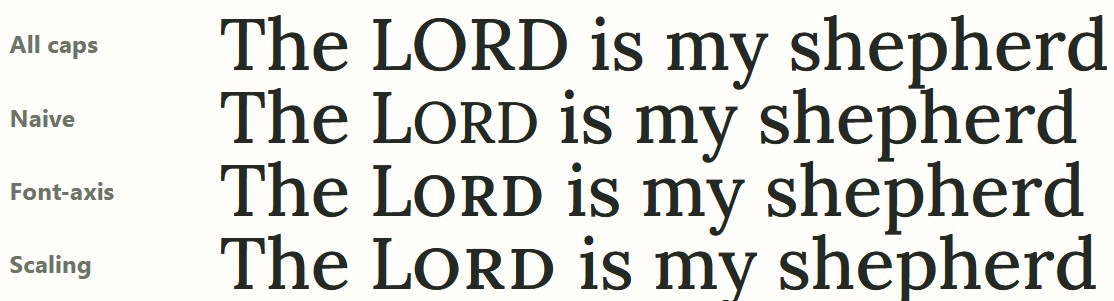
Usually it works fine… sometimes less so. Here the default 0.048em tracking for Lora feels too loose to me; it feels better at 0.03em, which also addresses some of the awkward kerning between “O” and “R” that you see below:

Lora has no small-caps, so the effect here is synthesized.

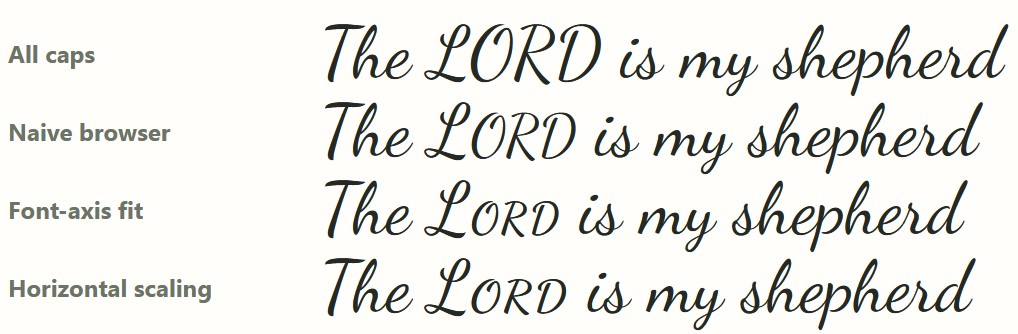
Sometimes the font itself (such as Dancing Script) doesn’t have enough weight variation. Even using a 400 base weight, the maximum 700 weight doesn’t fit with the lower-case letters.

Here the small-caps look too light compared to the lower-case letters.

With monospace fonts, the font scaling throws off the spacing. I wouldn’t use this tool for monospace fonts unless you don’t want the characters to line up… in which case, why are you using a monospace font?

Other features

If the generated small-caps don’t look quite right, you can adjust a bunch of sliders to get the look you want.

You can export the CSS (though you’ll probably need to adapt the markup to match your tagging system). There are also Typst and LuaLaTex exports (neither of which I tested). You can also share your settings or copy the url for your own later reference.

You can drag your own .woff2, .otf, or .ttf into the tool, and it’ll generate results for you. All the computation happens only in your browser; the main reason for hosting it on Github instead of on this site is to show that no server-side processing is happening. I don’t want your fonts.

Try it out

If you’re a typographic purist, you may be appalled at synthesizing small-caps at all. From a practical standpoint, though, these results are better than relying on scaling alone. I hope you find this tool useful next time you’re typesetting a Bible.

GPT-6 Astra wrote this tool under my guidance.

Try it online or access the source on Github; you can run it completely locally if you like.

Posted in Code, Typography

Building an Interlinear Apocrypha in two days for $50 with AI

Try the Interlinear Apocrypha.

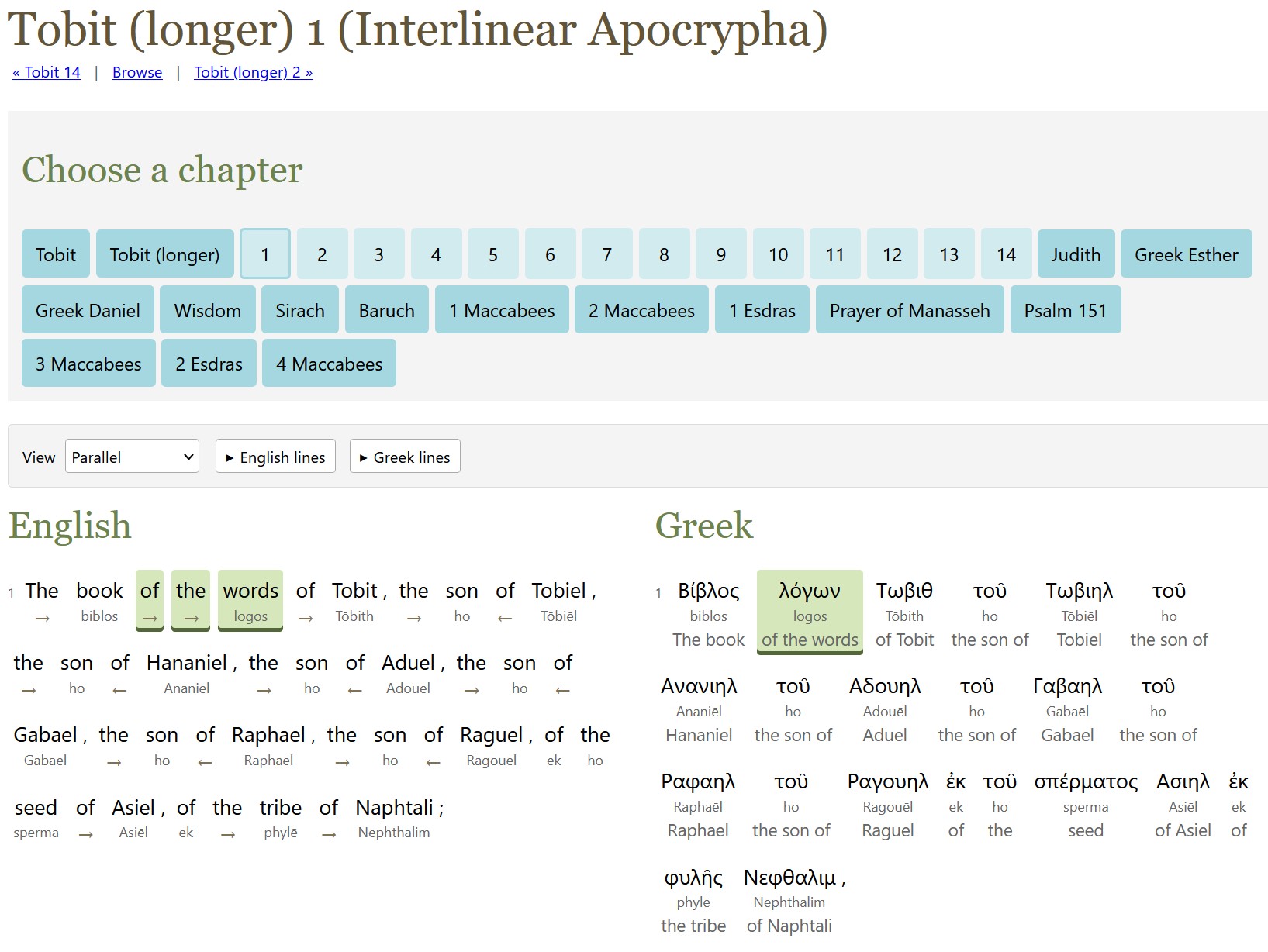
A screenshot of longer Tobit 1 in the interlinear shows highlighting between the English and the Greek.

The method to produce last week’s ASV interlinear also works for the Apocrypha (or Deuterocanonicals), which is mostly in Greek.

Unlike with the ASV alignment, this project doesn’t try to align alternate readings in the original languages; I didn’t think it was worth the processing time, though I did include the apparatus from the source texts.

The English translation is the World English Bible (WEB) because it has a translation of the Apocrypha and is freely available. (The ASV translators didn’t translate the Apocrypha.) The only exception is the longer Tobit (did you know there were two Tobits? I didn’t!), which uses D. C. Simpson’s 1913 translation because WEB only translates the shorter Tobit.

GPT-6 Astra did all the alignment work. It used a week’s worth of Pro 20x Plan tokens (thus the $50 cost). I later expanded the scope to transcribe the source apparatus (alternate manuscript readings, mostly), as described below, which cost another $15.

I used latinCy to generate the Latin parsing, with a review by Astra.

Here’s the output:

  1. The interlinear/reverse-interlinear interface, which lets you explore both English-first and original-language-first interfaces.
  2. A Git repo containing:
    1. The WEB English text tagged to the original languages (except for longer Tobit, which aligns Simpson rather than WEB).
    2. Greek and Latin text tagged to English. The versification here matches the originals rather than WEB. For example, Letter of Jeremiah is a separate book rather than WEB’s Baruch 6.
    3. Raw alignment data. As with ASV, these files are mostly the LLM talking to itself. I didn’t bother to include the scripts, which are substantially similar to the ASV ones.

Recreating the text of the Apocrypha

The Apocrypha text used is Rahlfs (1935), which the NRSVue translators say they used for most books. The Latin source text for 2 Esdras is from Bensly (1895).

While the main text was already digitized (mostly) correctly, I also decided to digitize the apparatus (which you can find in the USX files and in the original-language side of the HTML).

Here was my process for each page:

  1. GPT-6 Luna identifies the page regions in the page scans (header/footer vs. main text vs. apparatus). I ran three independent agents and took the union of the three.
  2. GPT-6 Sol transcribes the text. I used two agents for independent transcriptions. GPT-6 Luna wasn’t good enough to provide reliable transcriptions.
  3. GPT-6 Astra reconciles the Sol transcriptions and does any further work to finish the page.

It took about 30% of a week’s tokens on ChatGPT Pro 20x plan to parse around 550 pages, suggesting a potential processing rate of about 1,800 pages per week using this method. (This 30% was on top of the week’s tokens I spent on the alignment itself.)

Surprises

I asked GPT-6 Astra to reuse the ASV scripts, and I learned much later that it only sort-of complied. It missed a lot of details in adapting the scripts, which it had to reimplement later. My impression is that it rewrote these scripts from scratch instead of reusing what already existed.

About 92% of the Greek text (total words, not unique words) was able to have a Strong’s number assigned to it, thanks to TBESG. It probably could have found more, but it was spending a lot of tokens for diminishing returns.

Posted in AI, Code, Interlinear

Building an Interlinear for the ASV Bible in six weeks for $300 with AI

Try the ASV interlinear.

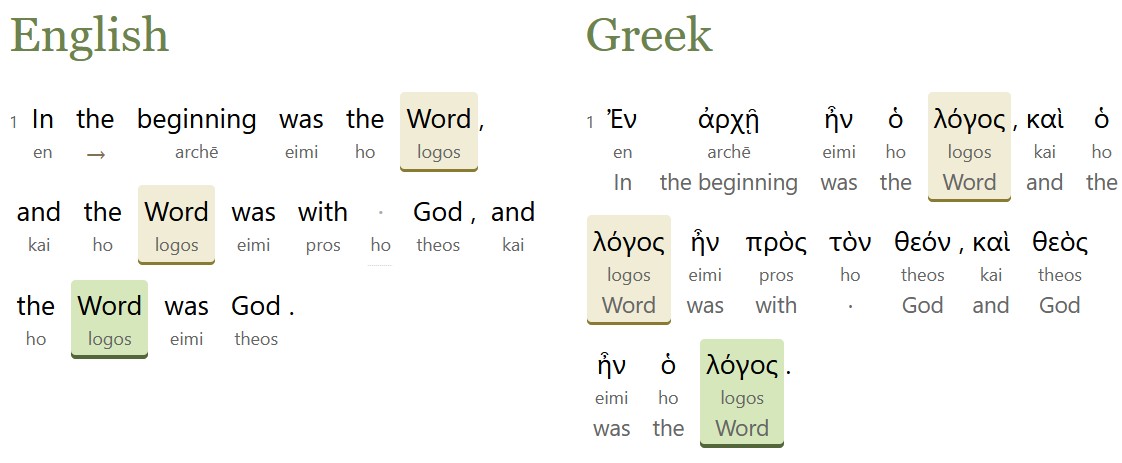
A screenshot of John 1 in the interlinear shows highlighting between the English and the Greek.

AI models are now smart enough to align English Bible translations with the original Hebrew and Greek, so why not make an alignment?

Starting with the English text of the American Standard Version (ASV) Bible from 1901, which is in the public domain, Opus 5, GPT 5.6 Sol, and GPT 6 Astra created an interlinear alignment, matching up the Hebrew and Greek original with the ASV’s modern(ish) English.

Here’s what they produced:

  1. The interlinear interface, which lets you explore both English-first and original-language-first interfaces. It also lets you see where the ASV departs from the KJV’s underlying text (155 verses).
  2. An ASV English text tagged to the original languages.
  3. A Hebrew and Greek text tagged to the ASV English. This text hypothetically reconstructs the eclectic text used by the ASV translators; textual variants that appear to have been chosen by the translators serve as the main text.
  4. Data and scripts that let you adapt this alignment process to your own text. If nothing else, the hard-won alignment rules, which went through hundreds of revisions over the course of this project and which cover all the tricky situations encountered during it, can serve as the starting point for your own alignment. LLMs love to talk about what they’re doing, and this repo records alignment reasoning down to individual verses.

Maximalist alignment philosophy

Perhaps most controversially, this project adopts a maximalist alignment philosophy, where it tries to align as much as possible, including italicized words that the ASV translators indicated as added. There are 6,250 such italic words in the ASV:

  • 3,303 are tagged as “added,” consistent with the ASV translators’ view.
  • 2,584 are tagged as part of a phrase with a different headword (the most-important word in a phrase).
  • 363 are tagged as headwords. For example, “those lands” in Judges 11:13 is translating the Hebrew pronoun for those. This alignment puts the phrase head on “lands” because it’s the most distinctive part of the phrase.

Process

Each chapter went through a three-step process:

  1. Align. The AI preps the data and does a first-pass alignment for each verse. It’s provided the alignment rules and the source text.
  2. Review. The AI looks at each verse and assesses whether the alignment is correct.
  3. Reconcile. The AI takes a larger view of the chapter, identifying inconsistencies or common themes and deciding whether to create new rules based on what it learned during this chapter.

Each chapter took about 40-60 minutes to run. Psalm 119 (the longest chapter in the Bible) took 90 minutes.

Managing cost

The hardest part of this project was managing token budgets. At first, I was parsing individual verses, which is the best way to achieve isolated alignments and reviews. But this approach exhausted my token quotas too quickly. So I switched instead to handling a full chapter at a time, which seemed to be the best balance of cost and performance.

Using this process, Claude Max or ChatGPT Pro 20x plan can process about 200-300 chapters per week before exhausting quota. ChatGPT is about 50% more efficient than Claude in terms of the number of chapters it can process per week. It took six quota-weeks to process these chapters, which is how I arrived at a $300 cost. (Traditionally, an interlinear would cost $50,000-$100,000 to produce.)

The token list prices are much higher than what I paid:

Step List Price
Align $2,300
Review $1,900
Reconcile $3,600
Total $7,800

So a 20x plan netted a 96% token discount off list prices.

I spent 100 million input tokens, 120 million output tokens, and 2.1 billion cached input tokens. With cache writes and some additional processing, the total token usage was about 2.5 billion tokens.

I also tried DeepSeek v4 and GLM 5.3, neither of which produced good results. Gemini 3.7 Flash produced fine results on alignment, but its batch API didn’t support structured outputs, which made it useless for this purpose.

Sources

This project worked from several open datasets:

  • SBLGNT, which served as the base Greek text. The variant readings in its footnotes supported 340 verses (out of just under 8,000 in the New Testament) where the ASV translators departed from the SBLGNT’s critical text (in part because the critical text is modern, while the ASV dates from 1901).
  • MACULA Hebrew and Greek for parsing data.
  • OSHB for the WLC text and verse-number differences between the Hebrew and the ASV.

I’m aware of two existing ASV alignments: Logos (2020) and STEP Bible by Wade Masfield (2013). I validated two chapters against the STEP alignment and one chapter against an NASB alignment to confirm that the AI output was sane, but I didn’t consult existing copyrighted alignments beyond these validation chapters.

Surprises

This project used an open human alignment as a gold standard. However, this data only altered two word-level alignments in the entire Bible. It added a lot of overhead to the process, since the AI mostly talked about how it disagreed with the reference because of differences in alignment philosophy. It turned out to be wasted overhead. The English glosses attached to the Hebrew and Greek mitigate this finding somewhat.

Far and away, this finding was the most-surprising part of the whole process for me: models are smart enough to do the alignment on their own, and a gold-standard, existing alignment reference is just a distraction to them, at least for this workflow.

Posted in AI, Code, Interlinear

Blending Herod’s Temple

I recently wrote about using Opus 5 to create a 3D model of Herod’s Temple. Now GPT-6 Astra is out, and OpenAI is trumpeting how well it uses Blender. They’re right.

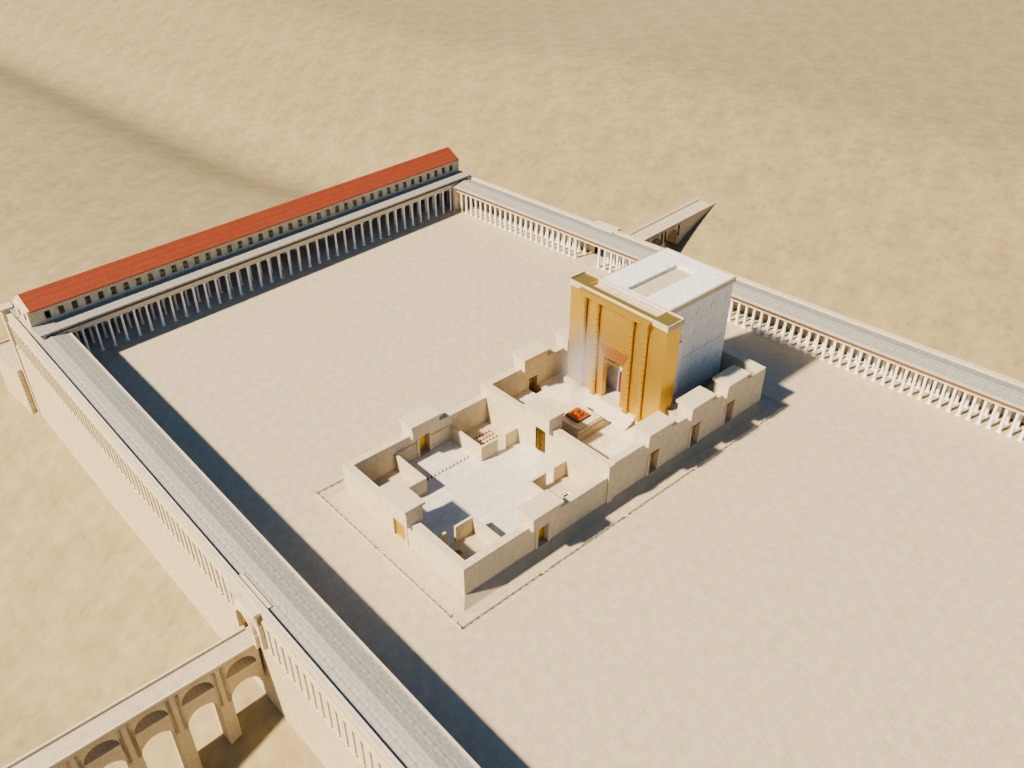
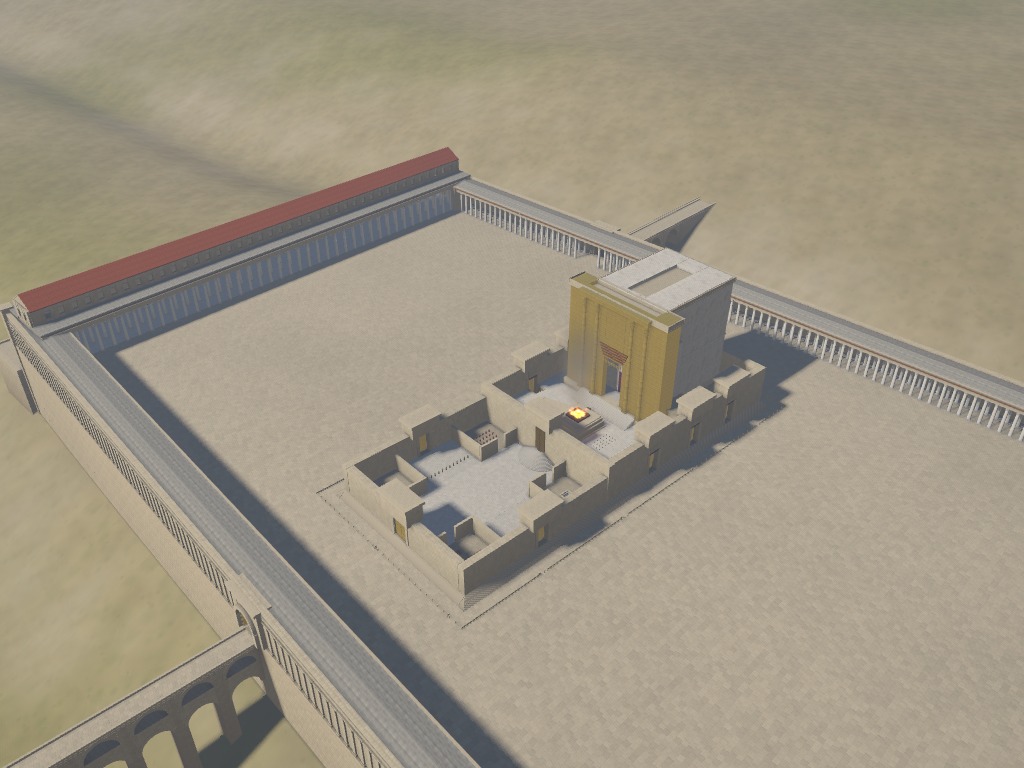
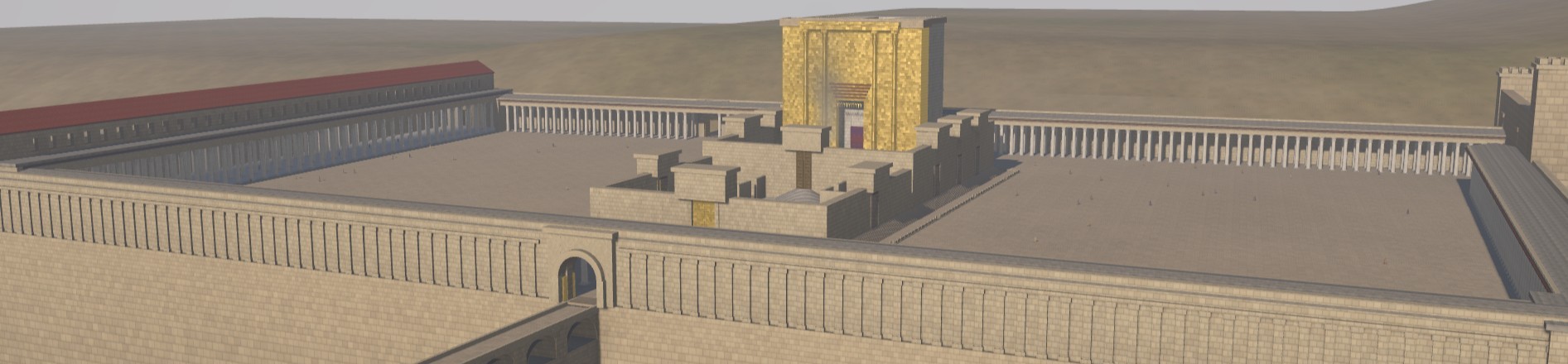
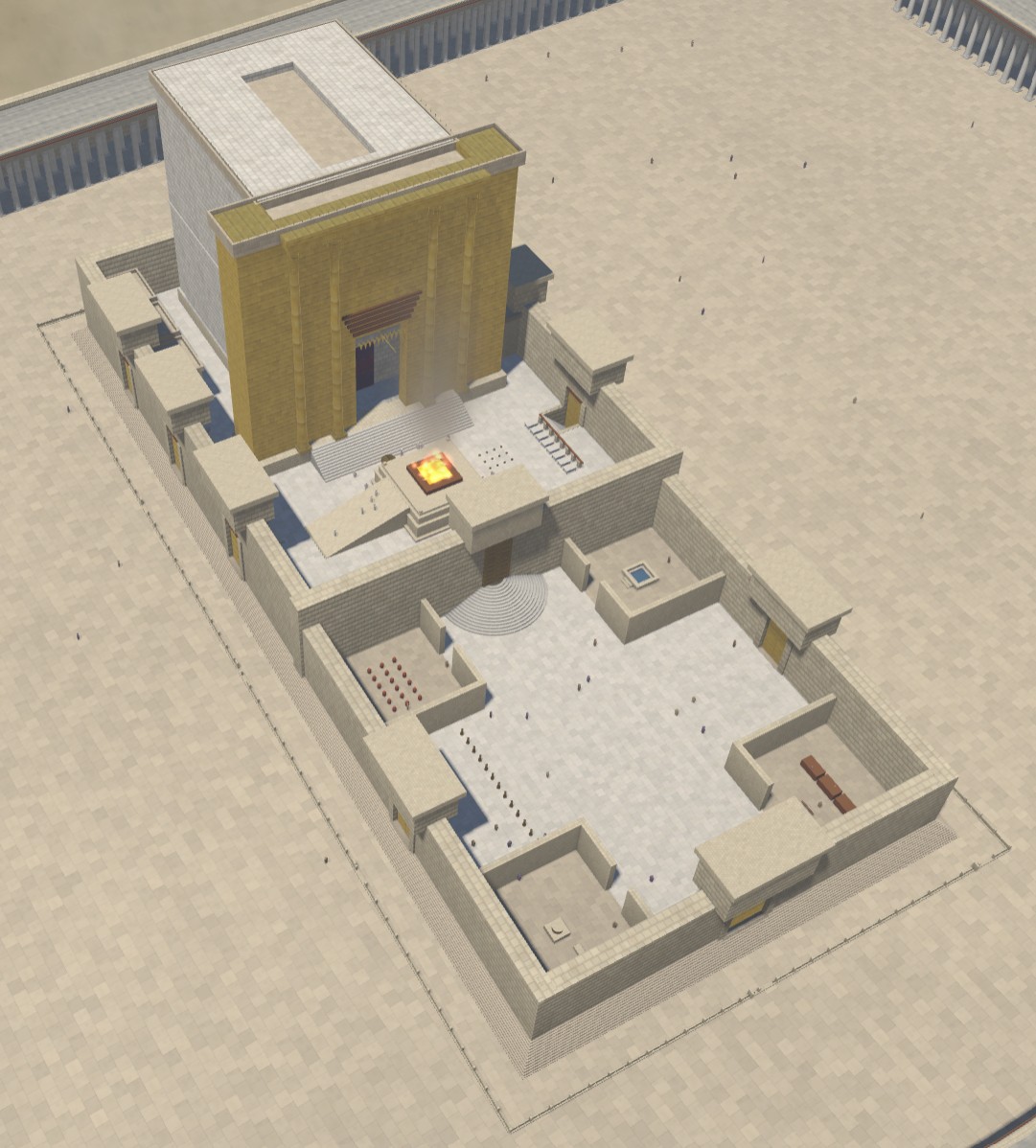
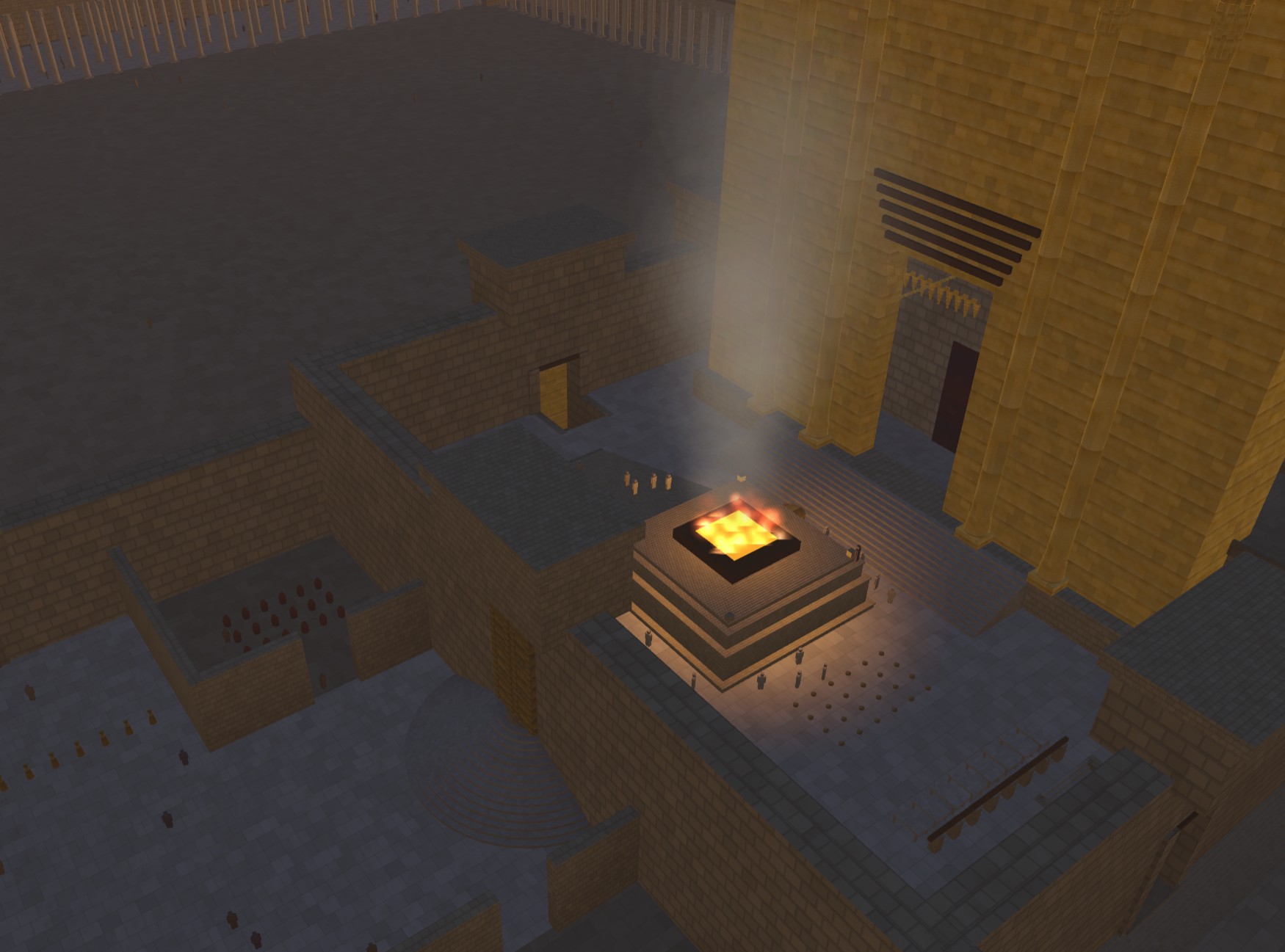
Below are some views of the Herod’s Temple model that compare the Blender version from today with the HTML version from July.

I also updated the code on Github and uploaded the model to Sketchfab so that you can use your own AI to make changes. Or maybe you have actual 3D-modeling skills and just want a starting place. In any case, feel free to use them however you want; AI-generated content isn’t copyrightable.

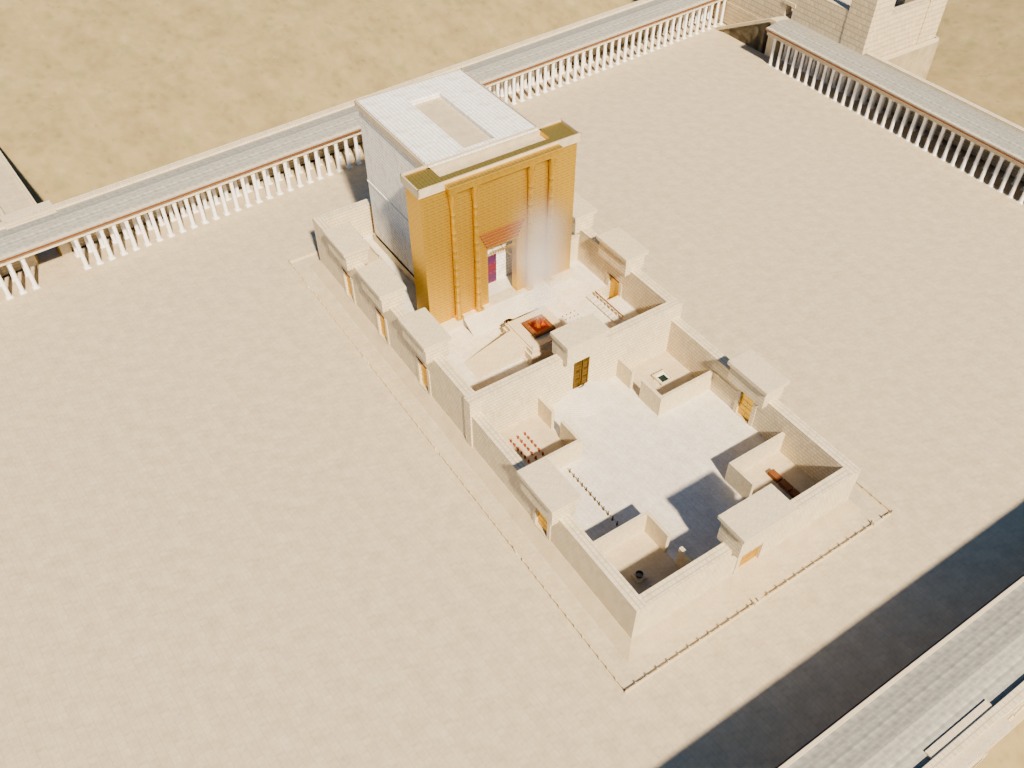
Blender Temple render, looking at the whole Temple complex from the northeast.
The Blender version is brighter and clearer, with better shadows and reflectivity.
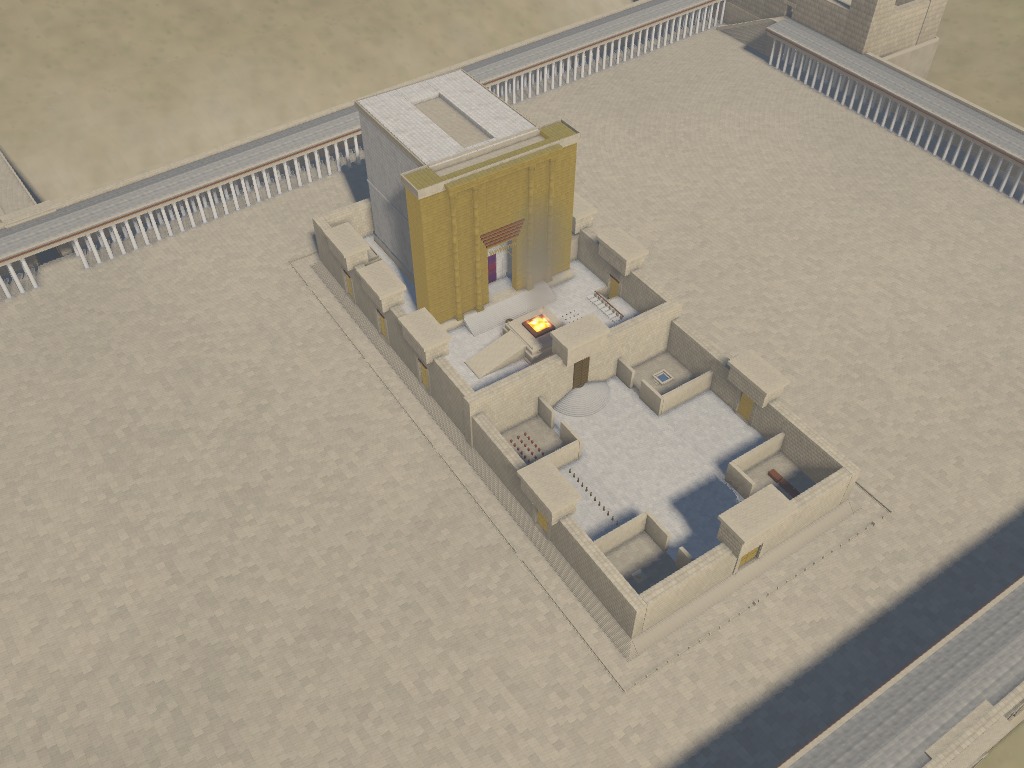
HTML Temple render, looking at the whole Temple complex from the northeast.
The HTML version is murkier.
Blender Temple render, looking at the central sanctuary area from the southeast.
Again, the Blender version feels more realistic.
HTML Temple render, looking at the central sanctuary area from the southeast.
I do like the fire in the HTML version better, though.

Posted in Code, Geo, History, Virtual Reality

New: Place Search in Geocoding

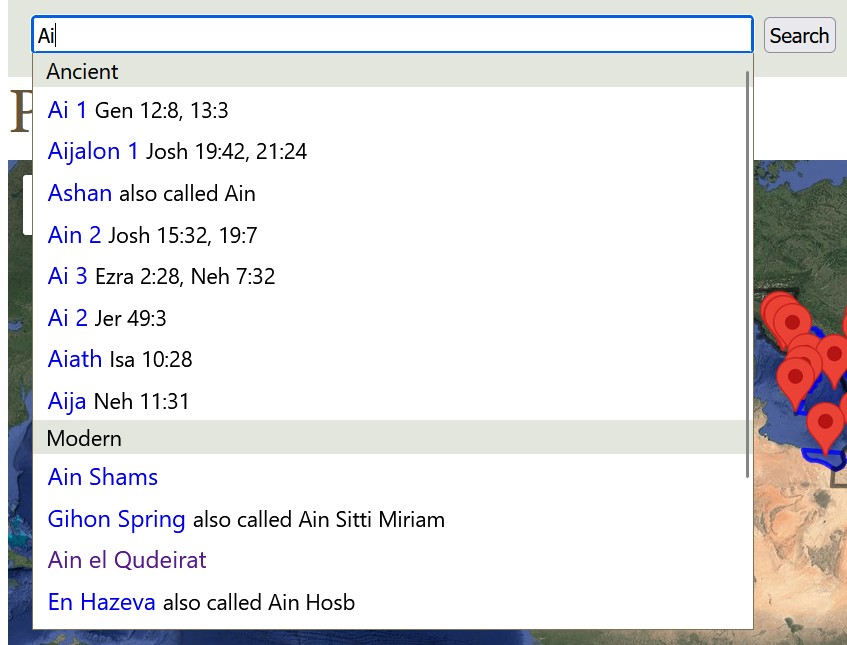
There’s now a search box in the Geocoding section of the site, which lets you search for place names (both ancient and modern) and should make this part of the site easier to navigate around:

A screenshot of the search interface shows a search for Ai with multiple possible results.

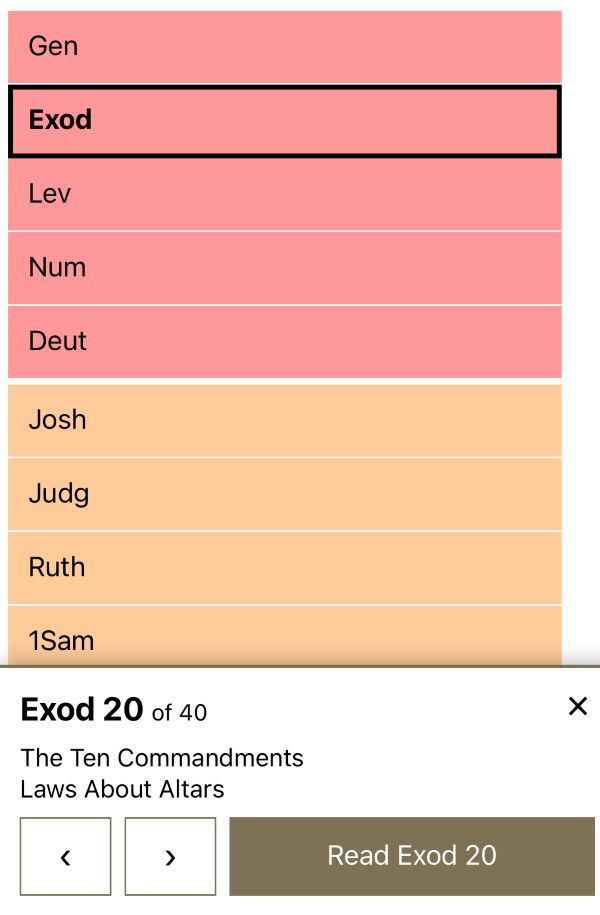
The Bible Book Browser (from 2007) also now has a touch-friendly interface:

A screenshot of the touch interface for the book browser, showing a panel at the bottom.

Obviously AI wrote these features for me. They’re part of a server upgrade: this site is now running on a server that’s twice as fast as the old one.

Also, this blog now uses Hugo instead of WordPress since I don’t need the ongoing pain that is the WordPress upgrade treadmill, not to mention the drama around the 2024 WPEngine controversy. A CMS should be drama-free. There aren’t comments anymore, unfortunately.

Posted in Geo, Labs

Clauding an Interactive 3D Model of Herod's Temple

In the announcement for Opus 5, Anthropic demoed an interactive visualization of a car in a wind tunnel. Clearly the next logical question is: can Opus 5 build an interactive visualization of Herod’s Temple complex in Jerusalem during the time of Christ?

Yes, it can. Try the interactive 3D model of Herod’s Temple it made and grab the source code to improve it.

My prompt was simple, just asking it to build a historically accurate, interactive, 3D reconstruction of the Temple. It created the model and added the interactive tour elements itself. It took about twelve hours of computate time over 25 revisions to repair geometry and (my favorite) animate the fire/smoke effect. It came up on its own with the idea of letting you change the time of day. The code is well beyond my ability and desire to understand. My revisions were mostly variations on saying, “This looks wrong. Fix it,” which is how we debug in July 2026.

The model is probably wrong on some details, though Claude argued eloquently for why it was right and scholars were wrong (such as the orientation of the steps from the plaza into the Antonia Fortress in the northwest and the existence of a causeway across the Kidron). The beauty of using an LLM and open-sourcing the code is that you can just feed it new research papers as they’re published and ask it to apply the findings to the model.

It also includes views of New Testament events that happened at the Temple, together with verse references. Claude’s text is rife with its aggressively precise tone (“Every arch ring needs its spandrel”), and I didn’t review every word it wrote. It also enjoys narrating its whole journey of discovery in code comments.

Some views:

Temple render at 9am.
A morning view from the east captures the gold reflection in the morning sun.
A render from above shows the Court of the Women, the altar, and the sanctuary.
The central Temple area.
An overhead view of the altar area, taken at simulated evening.
The glow from the altar in the evening shows off the lighting.

Try it or fork it.

Posted in Code, Geo, History, Virtual Reality

Enhancing Aerial Photos of 1917-1918 Palestine with AI

Experience the book here.

In 1925, Gustaf Dalman collected 100 (actually 101) photos taken by the German Air Force in 1917 and 1918 into the book One Hundred German Aerial Photographs of Palestine. In addition to the photos, he also described what they depicted, and he cataloged the locations of over 1,200 similar photos taken around the same time.

These photos represent the earliest published aerial photos of the Holy Land. Can AI enhance the experience? Maybe!

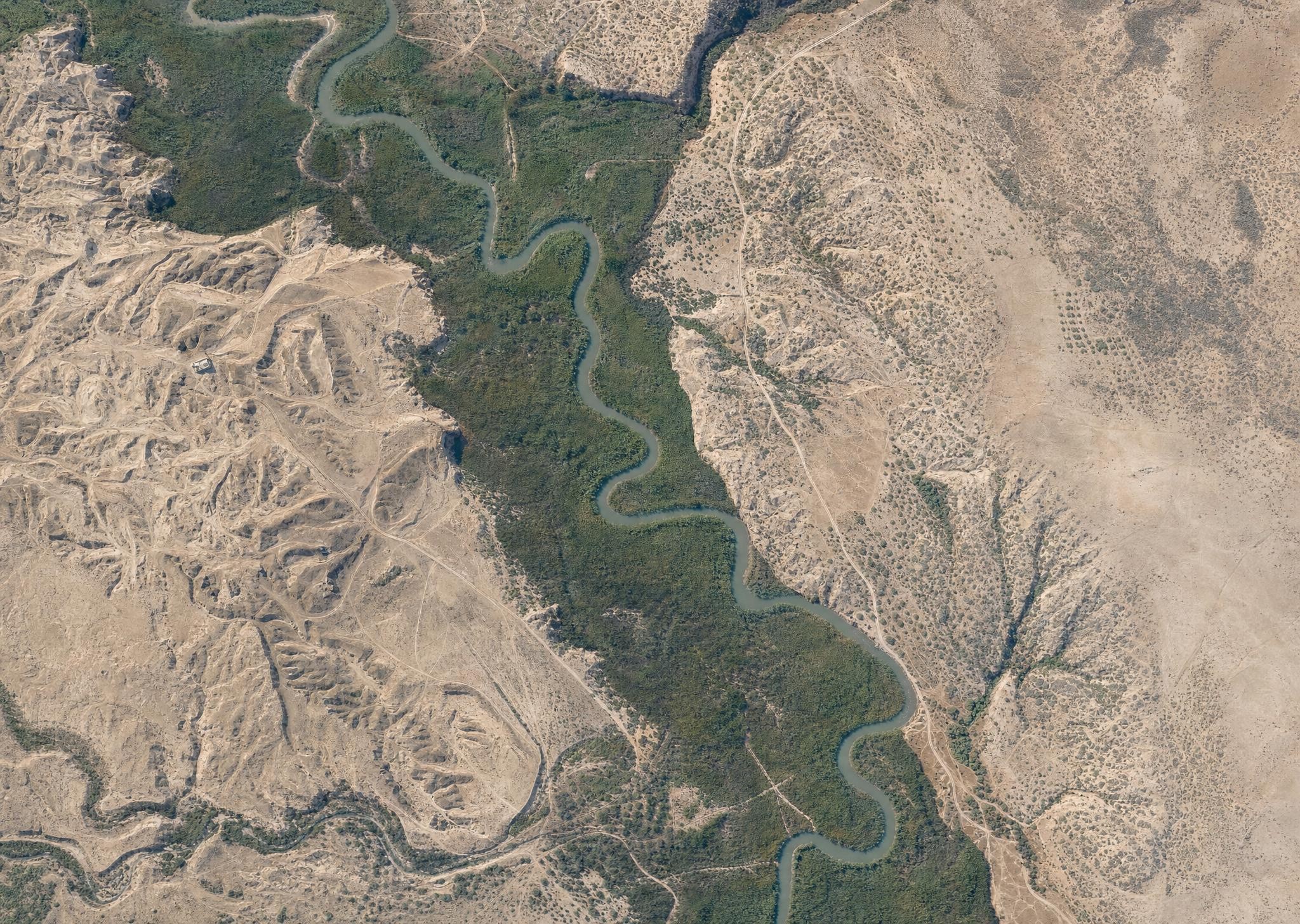
First, AI can colorize the photos. Below is what AI imagines the Jordan River looked like in March 1918, based on a historical photo. Compare it with a modern view of the same area, and you see much less vegetation across today’s Jordan Valley, with natural growth confined to a narrow strip around the Jordan’s watercourse. This kind of historical view gives you a better sense of what the area looked like in biblical times, assuming you were a bird. (The AI is also inventing sloppy details, so it’s creating immediacy at the expense of accuracy.) My instruction to the AI (GPT-Image-2) was to make each image look like it was taken with a modern iPhone.

An AI-generated interpretation of an aerial photo of the Jordan River in 1918 shows heavy forest throughout the Jordan Valley.

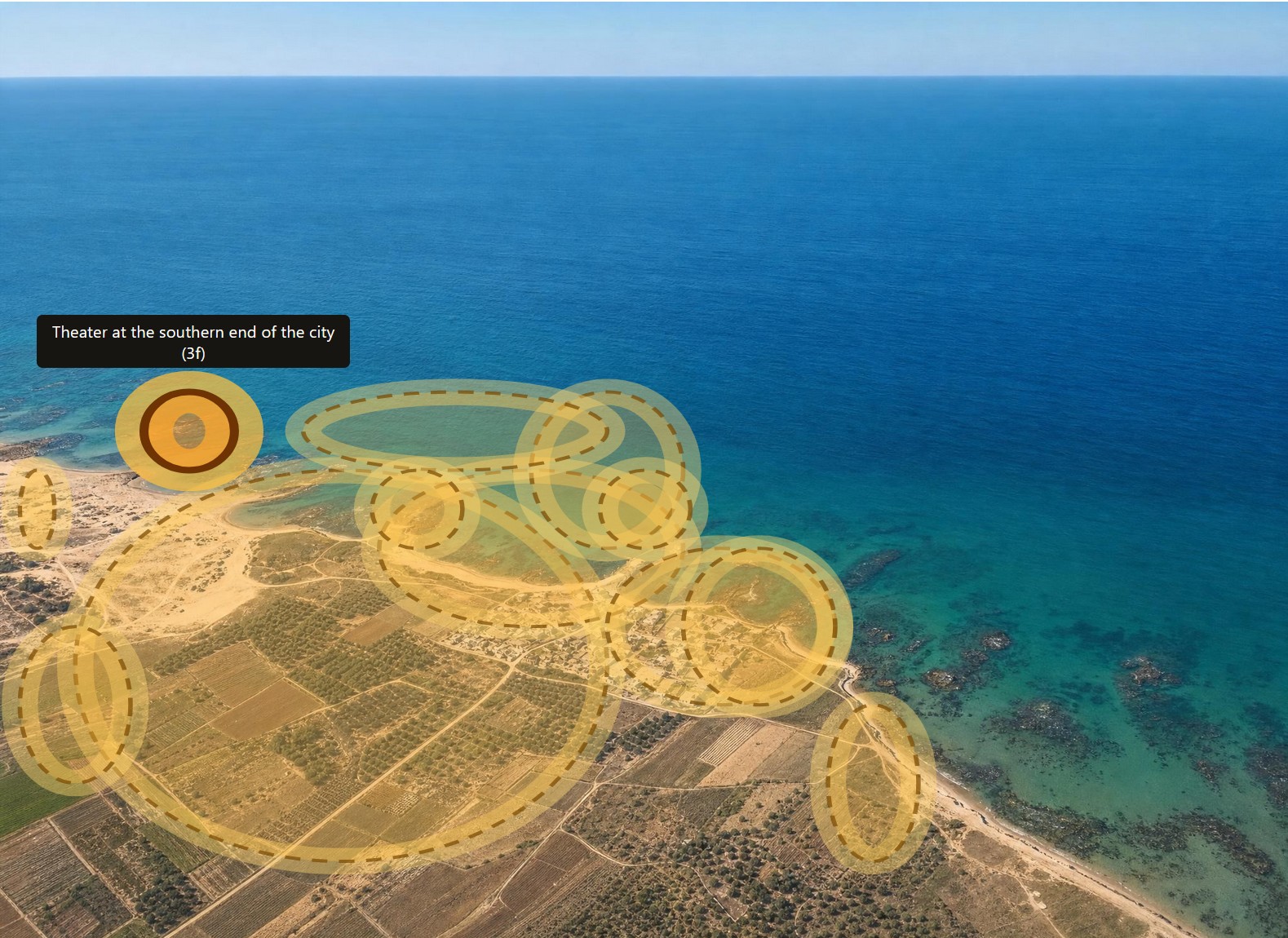
Second, AI can highlight all the features that Dalman mentions in his text. Below is Caesarea with all his annotations highlighted. Excavations at Caesarea wouldn’t happen until the 1950s, so you’re seeing the fishing village that it was at the time.

An AI interpretation of a circa-1917 photo of Caesarea shows outlines of features indicated in the text of the book, including a highlighted "Theater at the southern end of the city."

In the online book, you can click on any of the images to see the original black-and-white photos instead of the colorized AI images, if that’s how you want to roll.

Third, AI can translate the whole book from German into English. I don’t have a snappy image for you here, but it did a much better job than I would have.

Fourth, AI parsed the catalog at the end of the book so that it links to all the original photos at the Bavarian State Archives.

All the data and images for this book are in the public domain (at least in the United States), and the AI-generated images aren’t copyrightable, so you can enjoy and remix as you like. For the sake of clarity, I’m releasing the book under a CC0 license.

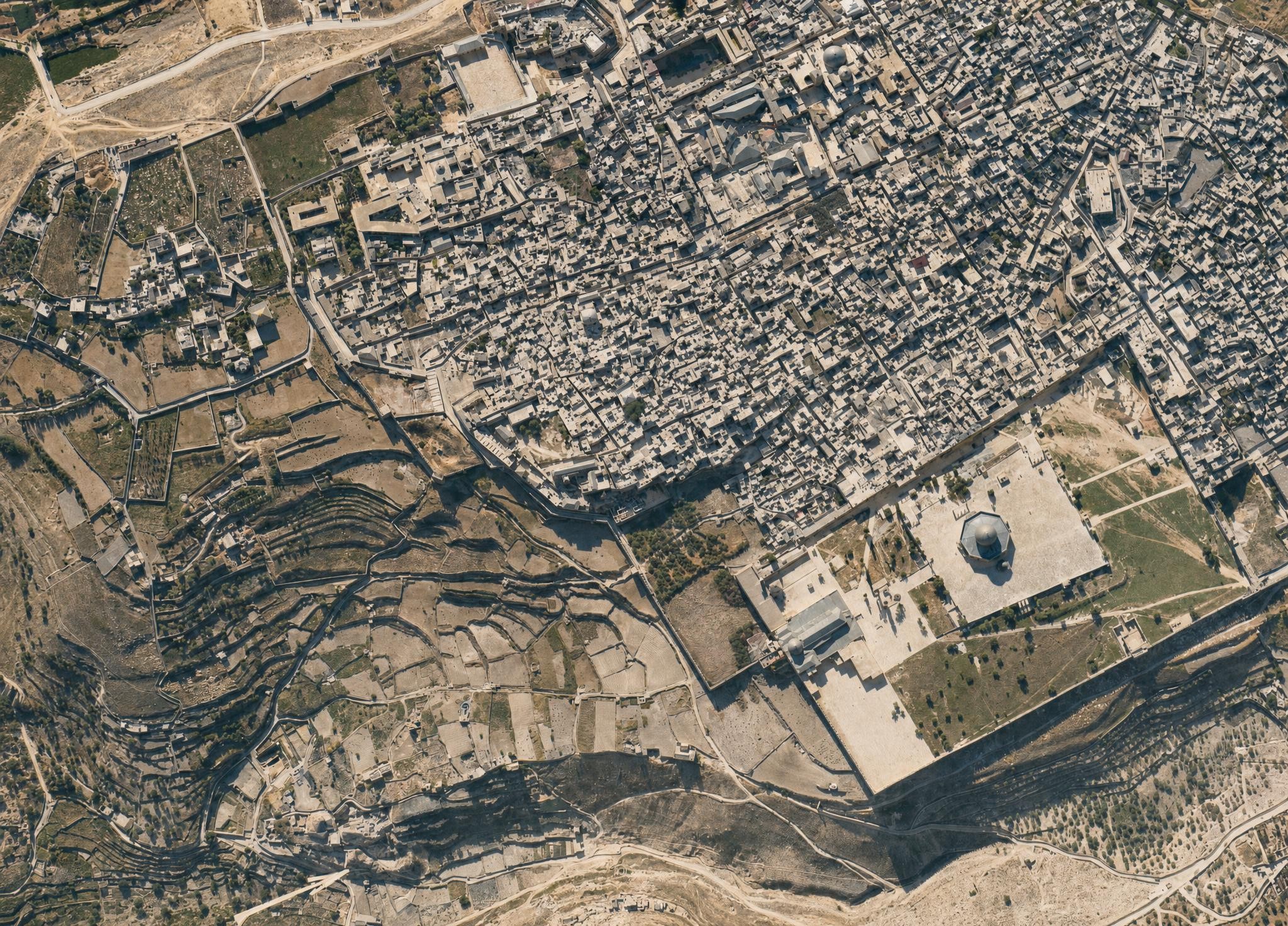
I leave you with this view of the Jerusalem’s Old City, which, again, shows much more open space than a modern view. I did have to keep reminding the AI that the Dome of the Rock didn’t have a golden dome at the time. The topography of the City of David (to the left of the Temple Mount) is clearly visible.

An AI interpretation of a 1917 aerial view of Jerusalem from above the Temple Mount focuses on the City of David.

Read the book here.

Posted in AI, Geo, History

New in Labs: Survey of Bible Cartography since 1912

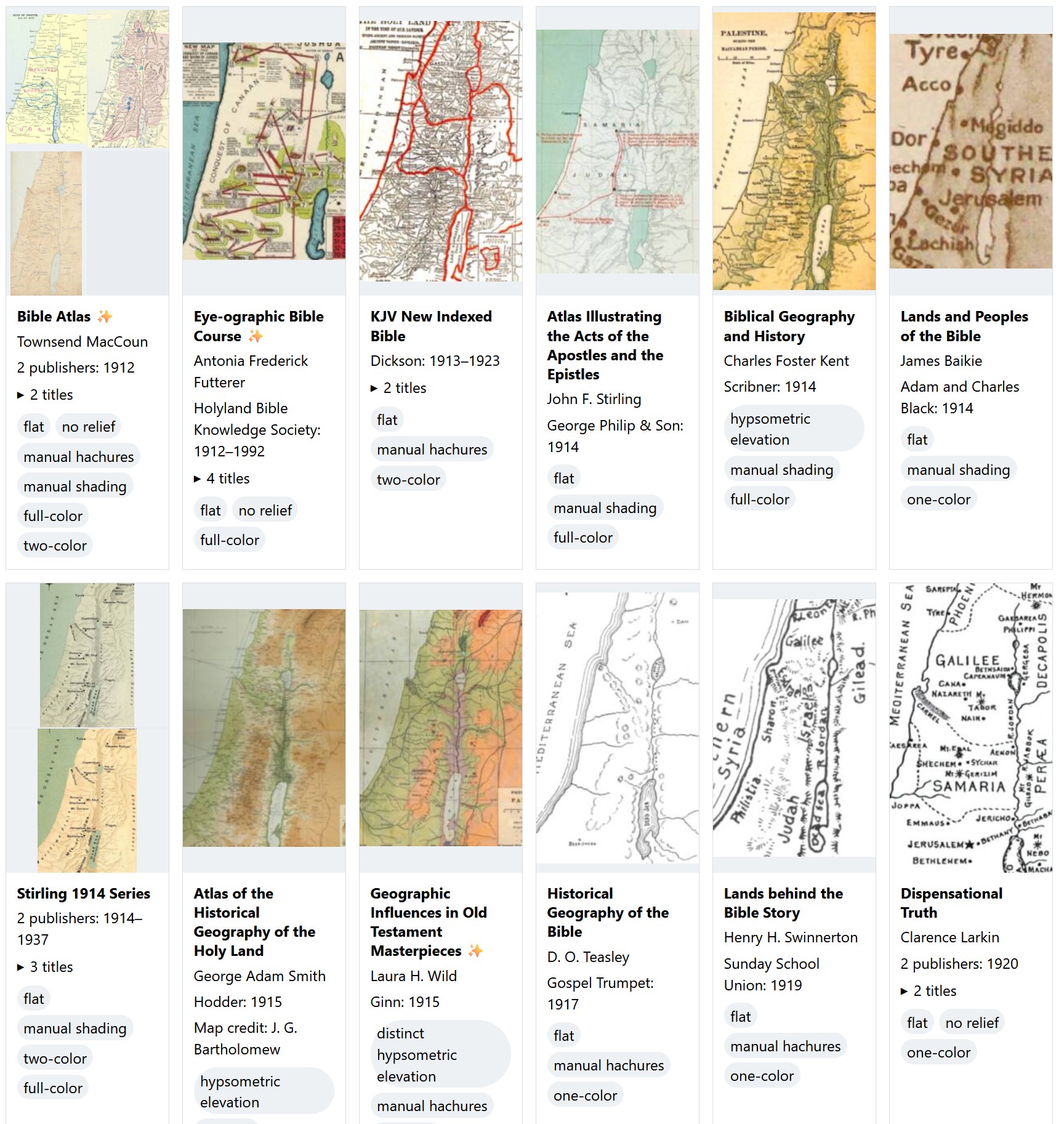
Two rows of Bible maps showing thumbnails and various data about them.

Go to the survey.

This survey presents over 460 distinct Bible maps from 880 sources published since 1912 and includes a thumbnail of each one to help you identify the source of a printed map you might be looking at. The images are intentionally low-resolution; they’re not designed to substitute for the original but to point you to the original. They’re also cropped from the originals to try to include Gaza in the west, the whole of the Dead Sea in the south, and Damascus in the northeast. The goal is to show you approximately the same view on every thumbnail, though doing so wasn’t possible for every map.

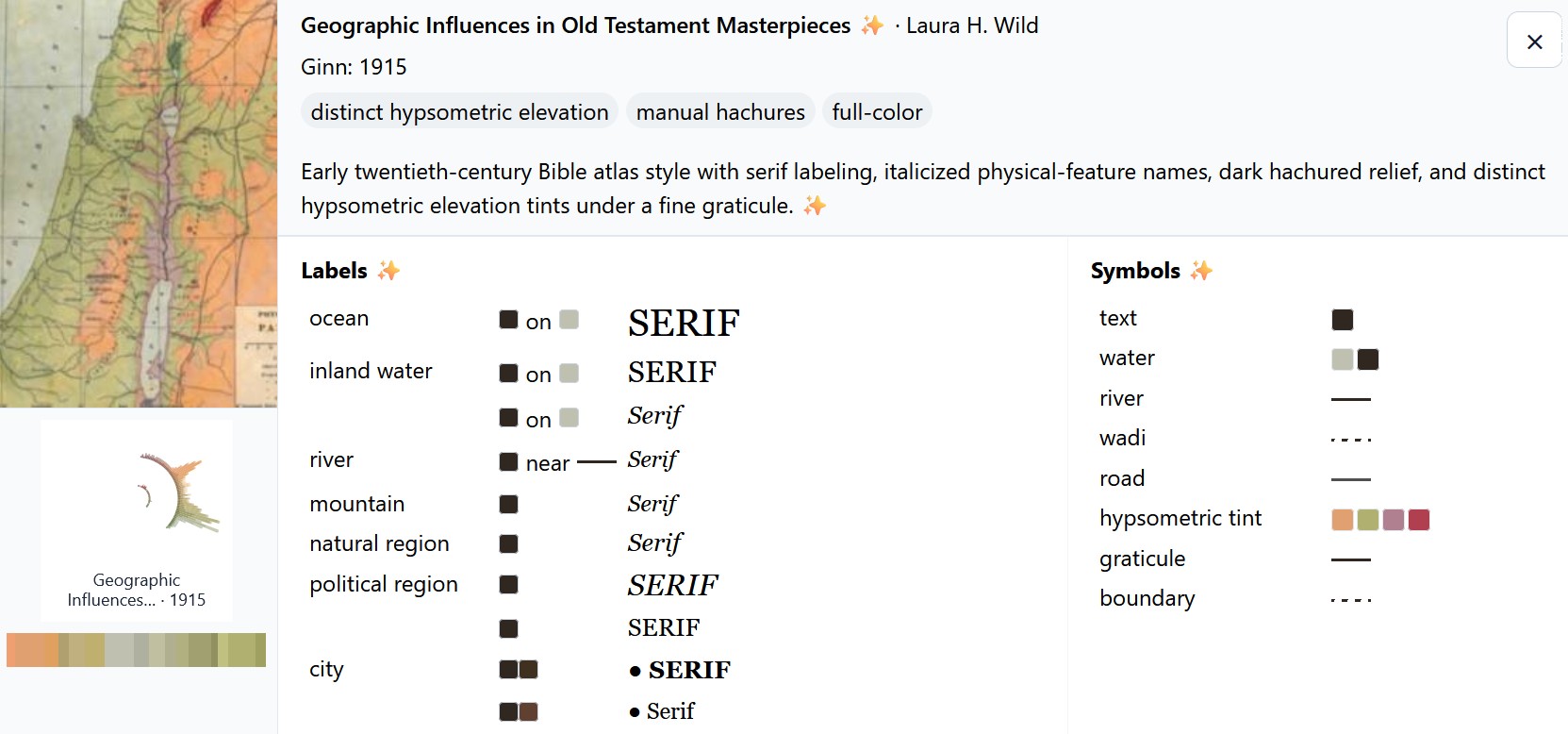
Click an image to show an AI-generated analysis of the colors and symbols used on the map. For example:

An AI-generated summary that shows the styles used in a particular map, including the labels and symbols.

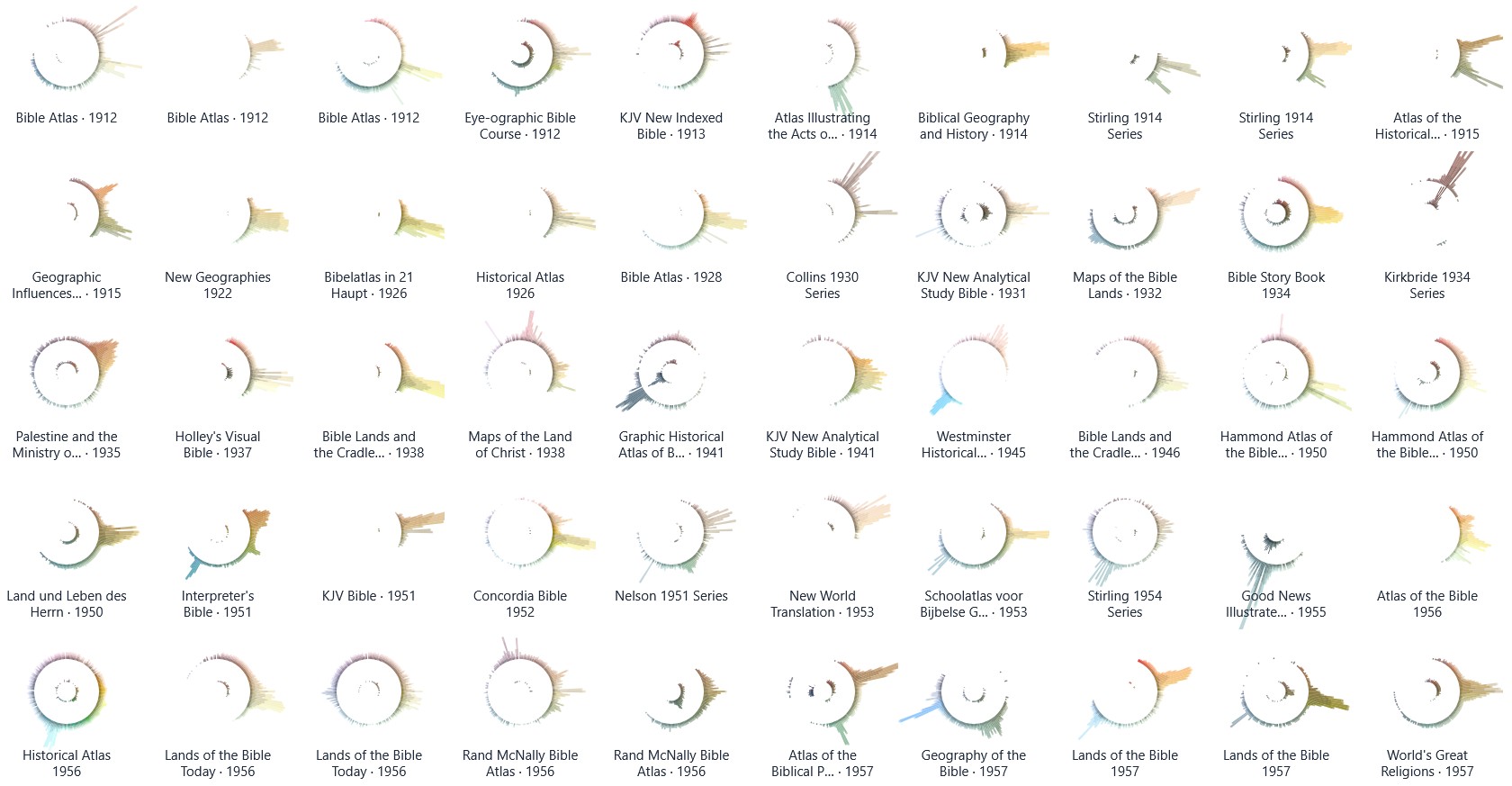
There’s also a palette view that uses radial histograms to let you compare the colors used in these maps. You can use this view to explore trends over time or to identify outliers. Amanda Hinton inspired this approach. (I thought about calling them “eyeball graphs” since the stronger dark colors of an earlier iteration of them made them resemble the pupil of an eyeball. Instead, I turned down the intensity; now they just look like concentric circles.) I also had Claude write a tool to create a circular palette with your own image.

The length of each color bar indicates the amount of that color used in the map. The outer circle shows lighter colors, and the inner circle shows darker colors. Many of the palettes use complementary or triadic color schemes that you probably learned about in school.

A series of circular palettes showing the color scheme of each map. The peaks show different colors.

In both views, you can search or filter the maps to find what you’re looking for. “Hachures” are little strokes that indicate topography, and “hypsometric elevation” means that colors change depending on the elevation.

To locate potential sources, I used WorldCat to show me all books published in English in the U.S. with the subject headings Bible—Geography—Maps and Bible—Geography. I also went through the list of study Bibles published at Theologue. While I don’t pretend that this survey is exhaustive, I was able to locate images for 95% of the relevant titles listed in WorldCat.

Because maps are relatively expensive to produce, publishers will often reuse the same basic map for decades, which you see reflected in the data. The Hammond 1977 Series, for example, was used for four decades, and the Moody 1986 Series was published in a new book as recently as 2024.

I used AI to reconstruct or enlarge images where the only source I could locate was a low-resolution image. Such images are marked.

Thank you to online Bible reviewers (especially Bible Buying Guide) for creating a historical record of what maps appeared in which Bibles. Even if you just flipped through a Bible in a YouTube video, a glimpse of a map was often enough to identify it.

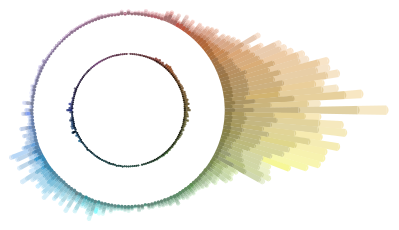
Finally, if you were to combine the palettes for all these maps into a single visualization, here’s what it would look like. You can see the strong use of oranges and browns to indicate land, smaller blue peaks for water, and a bit of green for vegetation or hypsometric elevation.

A circular palette in OKLCH colorspace showing peaks in oranges, browns, and yellows, with smaller peaks in blues and greens.

Posted in Geo